Configuración y preferencias de la cuenta
Hay cientos de formas de configurar tu cuenta y tus preferencias en Notion ⚙️
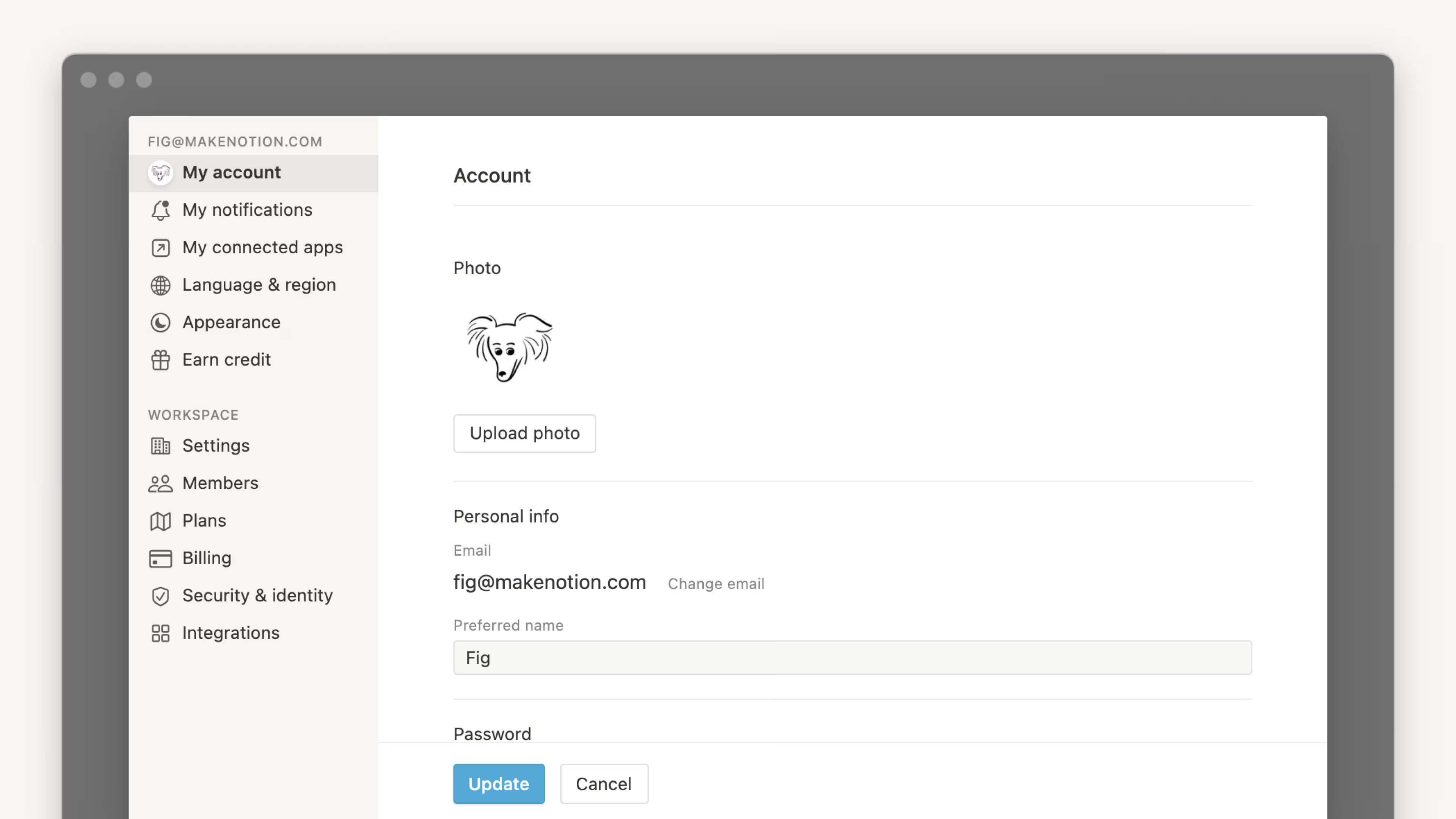
Ir a las preguntas frecuentesPara cambiar tu foto de perfil, debes hacerlo desde la versión de escritorio de Notion y seguir estos pasos:
En la barra lateral, selecciona la flecha hacia abajo junto al nombre del espacio de trabajo para ir a
Configuración. Luego, selecciona{tu nombre}.Selecciona tu foto actual o la inicial que aparece arriba de
Agregar foto.Selecciona el archivo que deseas usar desde tu dispositivo y haz clic en
Abrir.
Para cambiar tu nombre en Notion:
En la barra lateral, selecciona la flecha hacia abajo junto al nombre del espacio de trabajo para ir a
Configuración→{tu nombre}.En
Nombre preferido, escribe el nombre que deseas usar.
Tu dirección de correo electrónico principal es donde se envían las notificaciones de la cuenta de forma predeterminada. Puedes tener hasta 5 direcciones de correo electrónico en una cuenta de Notion.
Para cambiar tu dirección de correo electrónico principal:
En la barra lateral, selecciona la flecha hacia abajo junto al nombre del espacio de trabajo para acceder a
Configuración→{tu nombre}.En
Seguridad de la cuenta, haz clic enGestionar correos electrónicos.Haz clic en
Agregar correo electrónicoe ingresa la nueva dirección que quieras usar.Se enviará un código de verificación a la nueva dirección. Ingrésalo en Notion.
Una vez verificada, haz clic en el menú
•••junto al nuevo correo electrónico y seleccionaEstablecer como principal.Si deseas eliminar tu dirección de correo electrónico anterior, haz clic en el menú
•••junto a ella y seleccionaEliminar.
Con los alias de correo electrónico, ahora puedes asociar varias direcciones de correo a tu cuenta de Notion. Puedes usar cualquier alias verificado para iniciar sesión, acceder a elementos compartidos y recibir menciones, ya que todos comparten la misma identidad de cuenta.
Si el correo que quieres usar ya está vinculado a otra cuenta de Notion:
Primero tendrás que eliminar esa cuenta antes de poder agregar el correo electrónico como alias. Inicia sesión en la otra cuenta, ve a Configuración → {tu nombre} → Eliminar mi cuenta y, a continuación, vuelve a tu cuenta principal y agrega el correo electrónico como alias.
Usuarios del plan Enterprise:
La posibilidad de gestionar tus propios alias de correo electrónico depende de la política de tu organización. Es posible que tu administrador haya establecido las siguientes opciones para los alias: Desactivados (no permitidos), Solo para dominios verificados (únicamente los correos que coincidan con los dominios verificados de tu empresa) o Activados (cualquier correo). Contacta al administrador de tu espacio de trabajo si no puedes agregar un alias.
Intenté cambiar mi dirección de correo electrónico, pero recibí el mensaje de error “Ya existe un usuario con este correo electrónico”.
Si quieres cambiar el correo de tu cuenta a uno que ya está vinculado a otra cuenta de Notion, primero tendrás que eliminar esa cuenta antes de poder agregar el correo electrónico como alias. Para ello:
Inicia sesión en la cuenta vinculada a la dirección de correo electrónico que quieras recuperar y, a continuación, ve a
Configuración→{tu nombre}→Eliminar mi cuenta.A continuación, vuelve a tu cuenta principal y agrega el correo electrónico como alias.
¿Puedo tener varias direcciones de correo electrónico en mi cuenta de Notion?
¡Por supuesto! Consulta Correos electrónicos secundarios para descubrir más sobre cómo usar varias direcciones de correo electrónico para tu cuenta de Notion.

Si aparece un error indicándote que tu nuevo correo electrónico ya se está utilizando con otra cuenta, primero debes eliminar la cuenta vinculada a ese correo y, a continuación, volver a intentarlo.
Si quieres iniciar sesión en Notion con una contraseña permanente en lugar de códigos de inicio de sesión temporales:
En la barra lateral, selecciona la flecha hacia abajo junto al nombre del espacio de trabajo para ir a
Configuración→{tu nombre}.Selecciona
Establecer contraseña.Escribe una contraseña que cumpla con los requisitos de seguridad y confírmala. Las contraseñas deben tener como mínimo ocho caracteres, con al menos tres caracteres especiales, una letra y un número.
Si quieres cambiar o eliminar tu contraseña:
En la barra lateral, selecciona la flecha hacia abajo junto al nombre del espacio de trabajo para ir a
Configuración→{tu nombre}.Selecciona
Cambiar contraseña.Ingresa una nueva contraseña y selecciona
Cambiar contraseña, o bienEliminar contraseña.

Nota: ¡nunca compartas tu contraseña con nadie, ni siquiera con el soporte de Notion! Si alguien dice ser parte del equipo de soporte de Notion y te pide tu contraseña, no somos nosotros.
Todas las contraseñas están cifradas en nuestros servidores, así que no podemos acceder a los datos de las contraseñas.
Restablece la contraseña
Si olvidaste tu contraseña, sigue las instrucciones para restablecerla aquí →
Descubre más sobre la verificación en dos pasos aquí →
Descubre más sobre las passkeys aquí →
Descubre más sobre cómo iniciar y cerrar sesión en Notion en este artículo →
Descubre más sobre cómo eliminar tu cuenta aquí →
Descubre más sobre cómo cerrar sesión en todos tus dispositivos aquí →
Para personalizar la apariencia de Notion en la versión de escritorio:
En la barra lateral, selecciona la flecha hacia abajo junto al nombre del espacio de trabajo para ir a
Configuración→Preferencias.Abre el menú desplegable junto a
Aparienciay selecciona una de las siguientes opciones:Usar la configuración del sistemapara usar la misma configuración de apariencia de tu sistema.Claropara activar el modo claro.Oscuropara activar el modo oscuro.
También puedes activar o desactivar el modo oscuro en cualquier momento con este atajo:
Comando/Ctrl+Mayús+L.
Para personalizar la apariencia de Notion en dispositivos móviles:
Abre la barra lateral tocando
•••en la esquina superior.Toca
Configuracióny desplázate a la secciónApariencia.Abre el menú desplegable y selecciona una de las siguientes opciones:
Usar la configuración del sistemapara usar la misma configuración de apariencia de tu sistema.Claropara activar el modo claro.Oscuropara activar el modo oscuro.
Nota: cuando seleccionas el modo oscuro, se aplica a todos los espacios de trabajo en los que tengas una sesión activa en tu cuenta. Si cambias de uno a otro, todos serán oscuros.
Si estás en la web y quieres que los enlaces a páginas de Notion se abran en tu app para escritorio:
En la barra lateral, selecciona la flecha hacia abajo junto al nombre del espacio de trabajo para ir a
Configuración→Preferencias.Activa
Abrir enlaces en la app de escritorio.
Debes tener la app de escritorio instalada. También tendrás que ir a la configuración de Notion en tu aplicación para escritorio y asegurarte de que la opción Abrir enlaces en el navegador está desactivada.
Si los enlaces de Notion no se abren automáticamente en la aplicación de escritorio
Si los enlaces a las páginas de Notion no se abren automáticamente en la aplicación de escritorio, sigue estos pasos:
Abre el enlace en el navegador.
Haz clic en
•••, en la esquina superior derecha de la página. Desplázate hasta la parte inferior del menú que aparece y haz clic enAbrir en la app para Mac.
Sigue estos pasos para cambiar el idioma de la interfaz:
Ve a
Configuraciónen la barra lateral →Preferencias.En
Idioma y hora, abre el menú desplegable junto aIdioma.Elige tu idioma.
Nota: en los dispositivos móviles, el idioma de la app de Notion se establecerá según los idiomas que figuran en tus preferencias del sistema.
Según tu región, el primer día de la semana de los calendarios de Notion será el domingo o el lunes. Eso incluye el selector de fechas para recordatorios y bases de datos de calendarios. Puedes cambiar estos ajustes de forma manual si así lo deseas. Para ello:
En la barra lateral, selecciona la flecha hacia abajo junto al nombre del espacio de trabajo para ir a
Configuración→Preferencias.En
Idioma y hora, activa o desactiva la opciónComenzar la semana el lunes.
Para cambiar tu zona horaria:
En la barra lateral, selecciona la flecha hacia abajo junto al nombre del espacio de trabajo para ir a
Configuración→Preferencias.En
Idioma y hora, configúrala de forma manual o activaActualizar zona horaria automáticamente.
En la aplicación de escritorio de Notion, puedes cambiar los ajustes desde la Configuración en la barra lateral → Preferencias.
abrir el menú desplegable junto a
Al inicioy elegirContinuar donde lo dejaste, que abrirá las pestañas que tenías abiertas justo antes de que cerraras la app por última vez. También puedes seleccionarTu página predeterminadasi quieres que se abra siempre la misma página.Si quieres usar Búsqueda de comandos, que te permite buscar rápidamente en Notion mientras estás en otra aplicación, activa
Activar búsqueda de comandos. Una vez activada esta configuración, también puedes activar la opciónMostrar Notion en la barra de menúpara acceder a Notion desde la parte superior de la pantalla de tu ordenador, así como personalizar losatajos de teclado para la función de Búsqueday para laIA de Notion.Si quieres buscar cada vez que crees una nueva pestaña, activa
Búsqueda con nueva pestaña. Esto te permite buscar de forma inmediata y dirigirte a una página específica cuando abres una pestaña nueva. Si desactivas esta opción, las pestañas nuevas mostrarán la página predeterminada seleccionada en la configuración de laPágina predeterminada.Si quieres que los enlaces a páginas de Notion se abran en tu navegador en lugar de en la app de escritorio, activa
Abrir enlaces de Notion en el navegador. Tendrás que ir a Notion en tu app de escritorio y comprobar queAbrir enlaces en el navegadorestá desactivado.Si configuras enlaces para abrir en la app de escritorio, tu navegador abrirá automáticamente una nueva pestaña que te redireccionará a la app de escritorio cada vez que hagas clic en un enlace a una página de Notion. Para que estas pestañas se cierren automáticamente una vez que se te redirija a la app de escritorio, activa la opción
Cerrar las pestañas de redireccionamiento del navegador.
Si no quieres que la actividad de tu cuenta se registre en las estadísticas de página, puedes elegir no hacer uso de esta función por completo o en páginas específicas.
Para no hacer uso de las estadísticas en general:
En la barra lateral, selecciona la flecha hacia abajo junto al nombre del espacio de trabajo para ir a
Configuración→Preferencias.En
Privacidad, abre el menú desplegable junto aMostrar mi historial de visitasy seleccionaNo registrar.
Descubre más sobre las estadísticas de página aquí →
Puedes decidir si los usuarios con tu dirección de correo electrónico pueden ver tu nombre y tu foto de perfil cuando te invitan a un nuevo espacio de trabajo. Para hacerlo:
En la barra lateral, selecciona la flecha hacia abajo junto al nombre del espacio de trabajo para ir a
Configuración→Preferencias.En
Privacidad, buscaVisibilidad del perfil. Activa esta opción para que las personas con tu dirección de correo electrónico puedan ver tu perfil, o desactiva esta opción para ocultar tu perfil a las personas con tu dirección de correo electrónico.
Si activas la visibilidad del perfil, los usuarios verán esto cuando te inviten a un espacio de trabajo o a una página:
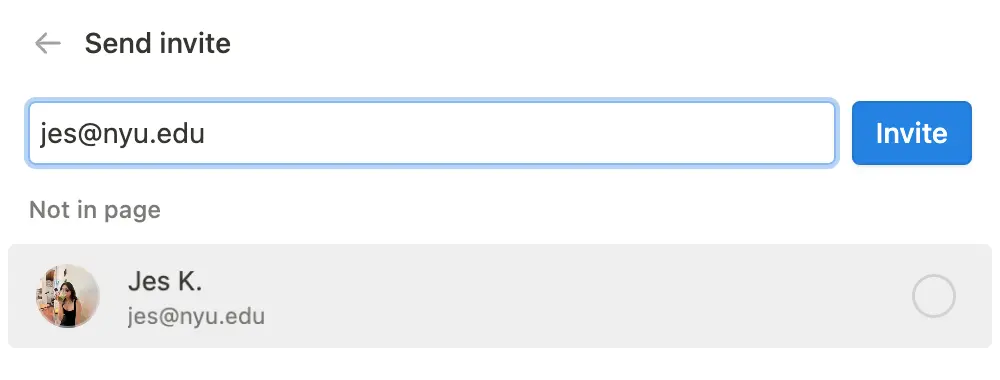
Si desactivas la visibilidad del perfil, los usuarios verán esto cuando te inviten a un espacio de trabajo o a una página:
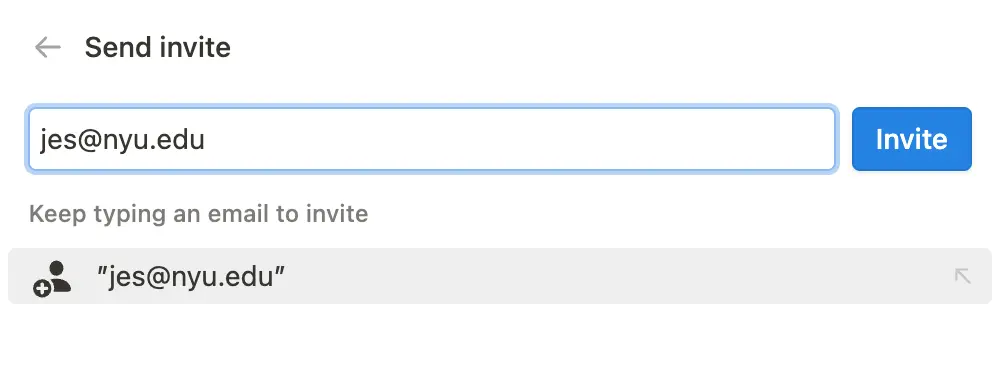
Nota: La persona usuaria que te invita podrá ver tu perfil si eres parte del mismo espacio de trabajo que ella o una vez que te hayas unido a su espacio de trabajo.
Preguntas frecuentes
Olvidé mi contraseña. ¿Qué hago?
Olvidé mi contraseña. ¿Qué hago?
Si olvidaste tu contraseña, sigue las instrucciones para restablecerla aquí →
Recibí un correo electrónico que dice que cambié mi dirección de correo electrónico o contraseña, pero no fui yo.
Recibí un correo electrónico que dice que cambié mi dirección de correo electrónico o contraseña, pero no fui yo.
Si recibes un correo electrónico que te avisa que cambiaste tu contraseña y no lo esperabas, deberías cambiarla lo antes posible. Sigue estos pasos:
Abre la página notion.so/login en tu navegador web.
Haz clic en el botón
Continuar con correo electrónico.Ingresa la dirección de correo electrónico asociada a tu cuenta de Notion.
Haz clic en el botón
¿Olvidaste la contraseña?y luego en el botónRecuperar contraseña.Te enviaremos un enlace a tu dirección de correo electrónico. Cuando hagas clic en dicho enlace accederás a
Configuraciónen tu espacio de trabajo de Notion y se restablecerá tu contraseña.Denuncia cualquier actividad sospechosa como esta a nuestro equipo de soporte escribiendo a [email protected].
Intenté cambiar mi dirección de correo electrónico, pero recibí el mensaje de error “Ya existe un usuario con este correo electrónico”.
Intenté cambiar mi dirección de correo electrónico, pero recibí el mensaje de error “Ya existe un usuario con este correo electrónico”.
Si quieres cambiar el correo electrónico de tu cuenta por uno que ya está vinculado a otra cuenta de Notion, puedes ingresar en la cuenta que está actualmente asociada con tu dirección de correo electrónico deseada y eliminar esa cuenta para liberar esa dirección de correo electrónico. Para ello:
Inicia sesión en la cuenta vinculada a la dirección de correo electrónico que quieras recuperar y, a continuación, ve a
Configuración→{tu nombre}→Eliminar mi cuenta.Inicia sesión en la cuenta cuya dirección de correo electrónico quieres cambiar y, a continuación, ve a
Configuración→{tu nombre}→Cambiar correo electrónico.
¿Qué sucede si elimino algo por error de manera permanente? ¿Hay alguna forma de recuperarlo?
¿Qué sucede si elimino algo por error de manera permanente? ¿Hay alguna forma de recuperarlo?
Si eliminas accidentalmente una página, un espacio de trabajo o incluso toda tu cuenta, ¡podemos ayudarte! Los accidentes ocurren 😅. Solo tienes que enviarnos un mensaje desde la app haciendo clic en el ícono ? en la parte inferior de la barra lateral, o enviarnos un correo electrónico a [email protected].
Guardamos copias de seguridad de nuestra base de datos, lo que nos permite restaurar tu contenido de los últimos 30 días en caso de que lo necesites.