Configurações e preferências da conta
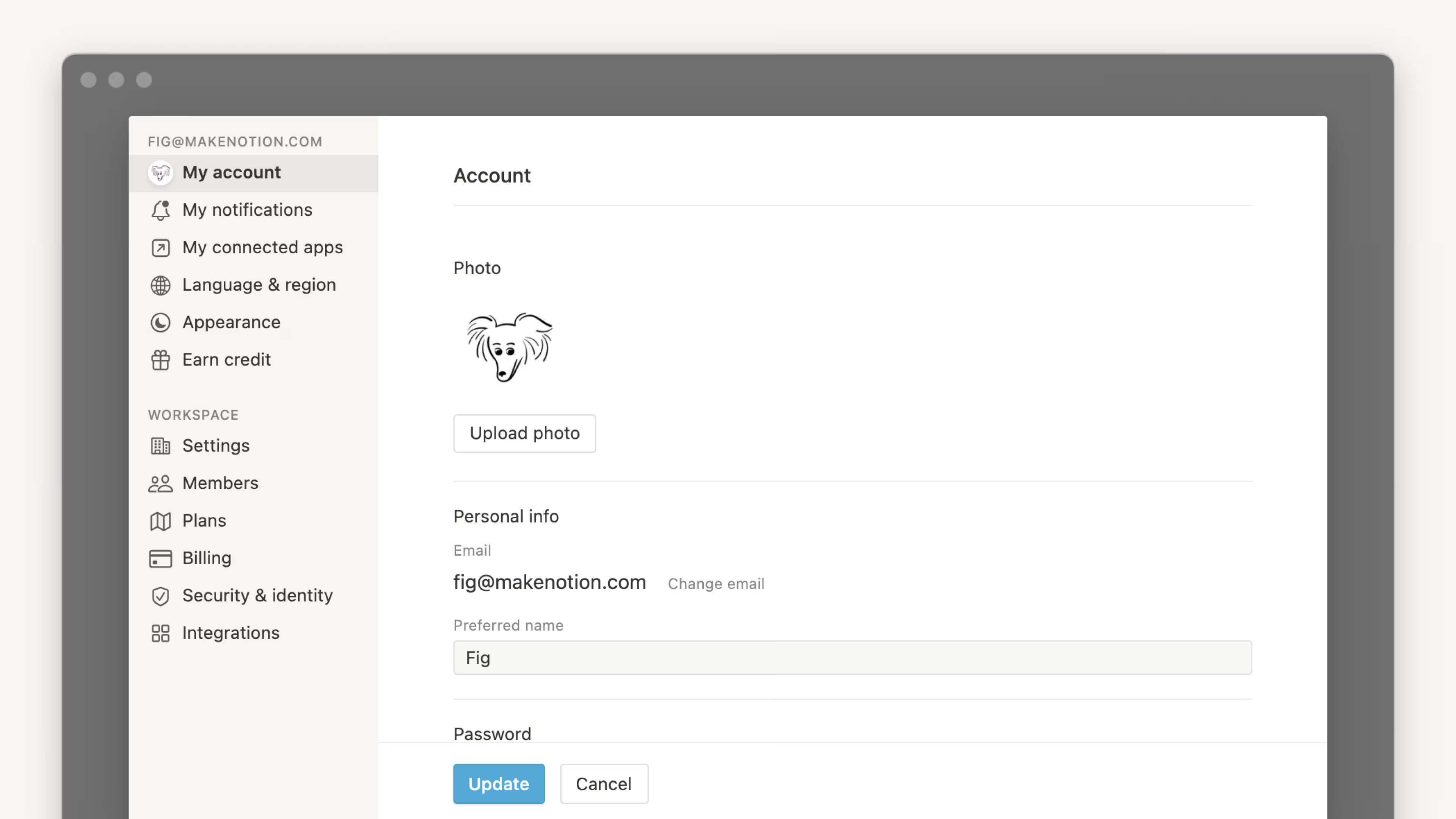
Existem muitas configurações e preferências de conta para ajustar no Notion ⚙️
Acessar as perguntas frequentesPara alterar sua foto de perfil, você precisa usar o Notion para desktop ou web e seguir estas etapas:
Na barra lateral, selecione a seta para baixo, ao lado do nome do espaço de trabalho, para acessar
Configurações. Em seguida, selecione{seu nome}.Selecione sua foto atual ou sua inicial acima de
Adicionar foto.Escolha o arquivo que deseja usar no seu dispositivo e clique em
Abrir.
Para alterar seu nome preferencial no Notion:
Na barra lateral, selecione a seta para baixo, ao lado do nome do espaço de trabalho, para acessar
Configurações→{seu nome}.Em
Nome preferencial, insira o nome que deseja usar.
Por padrão, as notificações da conta são enviadas para o seu endereço de e-mail principal. Você pode ter até 5 endereços de e-mail em uma conta do Notion.
Para alterar seu endereço de e-mail principal:
Na barra lateral, selecione a seta para baixo, ao lado do nome do espaço de trabalho, para acessar
Configurações→{seu nome}.Em
Segurança da conta, clique emGerenciar e-mails.Clique em
Adicionar e-maile insira o novo endereço de e-mail que você deseja usar.Um código de verificação será enviado para o novo endereço: insira-o no Notion para fins de validação.
Após a verificação, clique no menu
•••ao lado do novo e-mail e selecioneDefinir como principal.Opcionalmente, remova seu endereço de e-mail antigo clicando no menu
•••ao lado dele e selecionandoRemover.
Com os aliases de e-mail, agora você pode associar vários endereços de e-mail à sua conta do Notion. Qualquer alias verificado pode ser usado para fazer login, receber compartilhamentos e ser mencionado, todos vinculados à mesma identidade de conta.
Se o e-mail desejado já estiver vinculado a outra conta do Notion:
Você precisará excluir essa conta primeiro antes de adicionar o e-mail como um alias. Faça login na outra conta, acesse Configurações → {seu nome} → Excluir minha conta, em seguida, volte à sua conta principal e adicione o e-mail como um alias.
Usuários do Plano Enterprise têm as seguintes opções:
A possibilidade de gerenciar seus próprios aliases de e-mail depende da política da sua organização. Seu administrador pode ter definido os aliases como: Desativados (não permitido), Apenas domínios verificados (apenas e-mails que correspondam aos domínios verificados da sua empresa) ou Ativados (qualquer e-mail). Fale com o administrador do seu espaço de trabalho se não conseguir adicionar um alias.
Tentei mudar meu e-mail, mas recebi a mensagem de erro "Já existe um usuário com esse e-mail".
Se você quiser alterar o e-mail da sua conta para um que já esteja vinculado a outra conta do Notion, precisará excluir essa conta primeiro antes de adicionar o e-mail como um alias. Confira o passo a passo:
Faça login na conta vinculada ao endereço de e-mail desejado e acesse
Configurações→{seu nome}→Excluir minha conta.Em seguida, volte à sua conta principal e adicione o e-mail como um alias.
Posso ter vários endereços de e-mail na minha conta do Notion?
Você pode, sim. Consulte E-mails secundários para saber mais sobre como usar vários endereços de e-mail na sua conta do Notion.

Se você receber um erro informando que seu novo e-mail já está sendo usado com uma conta diferente, primeiro exclua a conta vinculada a esse e-mail e tente novamente.
Se você deseja fazer login no Notion usando uma senha permanente em vez de códigos de login temporários:
Na barra lateral, selecione a seta para baixo, ao lado do nome do espaço de trabalho, para acessar
Configurações→{seu nome}.Selecione
Definir senha.Insira uma senha que atenda aos requisitos de segurança e confirme-a. A senha precisa ter pelo menos 8 caracteres, com pelo menos 3 caracteres especiais, uma letra e um número.
Se quiser alterar ou remover sua senha:
Na barra lateral, selecione a seta para baixo, ao lado do nome do espaço de trabalho, para acessar
Configurações→{seu nome}.Selecione
Alterar senha.Insira uma nova senha e selecione
Alterar senhaou selecioneRemover senha.

Atenção: nunca compartilhe a sua senha, nem mesmo com a equipe de suporte do Notion! Aliás, os nossos colaboradores jamais pedirão a sua senha.
Todas as senhas do Notion são criptografadas em nossos servidores, então nós não temos acesso direto a nenhum desses dados.
Redefinir sua senha
Se você esqueceu sua senha, siga as instruções para redefini-la aqui →
Saiba mais sobre a verificação em duas etapas aqui →
Saiba mais sobre passkeys aqui →
Saiba mais sobre como fazer login e sair do Notion neste artigo →
Saiba mais sobre como excluir sua conta aqui →
Saiba mais sobre como fazer logout de todos os seus dispositivos aqui →
Para personalizar a aparência do Notion no desktop:
Na barra lateral, selecione a seta para baixo, ao lado do nome do espaço de trabalho, para acessar
Configurações→Preferências.Abra o menu suspenso ao lado de
Aparênciae selecione uma das seguintes opções:Usar configuração do sistemase quiser usar a aparência padrão do sistema.Claropara exibir o modo claro.Escuropara exibir o modo escuro.
Você também pode ativar ou desativar o modo escuro a qualquer momento, usando o atalho
ctrl/cmd+shift+L.
Para personalizar a aparência do Notion em dispositivos móveis:
Abra a barra lateral
•••no canto superior direito.Toque em
Configuraçõese acesse a seçãoAparência.Abra o menu suspenso e selecione uma das seguintes opções:
Usar configuração do sistemase quiser usar a aparência padrão do sistema.Claropara exibir o modo claro.Escuropara exibir o modo escuro.
Nota: quando ativado, o modo escuro é automaticamente aplicado a todos os espaços de trabalho da conta. Ao alternar de um espaço de trabalho para outro, você verá que todos estarão no modo escuro.
Se você estiver na web e quiser que todos os links das páginas do Notion sejam abertos no seu aplicativo para desktop:
Na barra lateral, selecione a seta para baixo, ao lado do nome do espaço de trabalho, para acessar
Configurações→Preferências.Ative a opção
Abrir links no app para desktop.
Você deverá ter o app para desktop já instalado. Você também precisará acessar o Notion no seu app para desktop e garantir que a opção Abrir links no navegador esteja desativada nas suas configurações.
Se os links do Notion não estiverem abrindo automaticamente no aplicativo para computador
Se os links para as páginas do Notion não estiverem abrindo automaticamente no aplicativo para computador, tente seguir estas etapas:
Abra o link no seu navegador.
Clique no botão
•••no canto superior direito da página. Vá até a parte inferior do menu exibido e clique emAbrir no aplicativo para Mac.
Siga as etapas abaixo para alterar o idioma do seu Notion:
Acesse
Configuraçõesna barra lateral →Preferências.Em
Idioma e região, abra o menu suspenso ao lado deIdioma.Selecione seu idioma.
Nota: na versão para dispositivos móveis, o idioma do Notion será definido de acordo com as preferências do seu sistema.
Os calendários do Notion podem marcar o início de uma semana às segundas ou aos domingos, dependendo da sua região. Essa configuração inclui também o seletor de data para lembretes e calendários de uma base de dados. É possível alterar o dia de início da semana manualmente. Confira o passo a passo:
Na barra lateral, selecione a seta para baixo, ao lado do nome do espaço de trabalho, para acessar
Configurações→Preferências.Em
Idioma e região, ative ou desative a opçãoIniciar semana na segunda-feira.
Para mudar seu fuso horário:
Na barra lateral, selecione a seta para baixo, ao lado do nome do espaço de trabalho, para acessar
Configurações→Preferências.Em
Idioma e região, defina seu fuso horário manualmente ou ativeAtualizar fuso horário automaticamente.
Se você estiver usando o aplicativo para computador do Notion, acesse Configurações na barra lateral → Preferências para gerenciar as configurações do aplicativo.
Abrir o menu suspenso ao lado de
Na inicializaçãopara escolherContinuar de onde parou), que abrirá as abas que você tinha aberto antes de fechar o app. Como alternativa, você pode escolherPágina padrãose quiser começar sempre com a mesma página.Se você quiser usar a Pesquisa por atalho, que permite pesquisar rapidamente no Notion enquanto estiver em outro app, ative a opção
Habilitar pesquisa por atalho. Quando essa configuração estiver ativada, você também poderá ativar a opçãoMostrar o Notion na barra de menupara que você possa acessar o Notion a partir da parte superior da tela, bem como ajustar oatalho do teclado para Pesquisa por Atalhoe o atalho para aIA do Notion.Se quiser que a pesquisa seja feita sempre que você criar uma nova aba, ative a opção
Nova pesquisa da aba. Isso permite a você pesquisar e navegar imediatamente para uma página específica ao abrir uma nova guia. Se essa configuração estiver desativada, as novas abas exibirão a página padrão especificada na configuraçãoPágina padrão.Se você quiser que todos os links das páginas do Notion sejam abertos no seu navegador da web em vez de serem abertos no app para desktop, ative a opção
Abrir links no navegador. Você precisará acessar o Notion no seu navegador e garantir que a opçãoAbrir links no app para desktopesteja desativada nas suas configurações.Se você configurar links para abrir no aplicativo para desktop, seu navegador abrirá uma nova guia que automaticamente redirecionará você para o app desktop toda vez que você clicar em um link para uma página do Notion. Para que essas guias sejam fechadas automaticamente quando você for redirecionado para o app desktop, habilite
Fechar redirecionamento de abas do navegador.
Se você não quiser que sua conta seja contabilizada para as métricas de páginas, pode deixar de participar completamente ou apenas em páginas específicas.
Para deixar de participar das métricas completamente:
Na barra lateral, selecione a seta para baixo, ao lado do nome do espaço de trabalho, para acessar
Configurações→Preferências.Em
Privacidade, abra o menu suspenso ao lado deMostrar meu histórico de visualizaçõese selecioneNão registrar.
Saiba mais sobre métricas de página aqui →
Você pode decidir se os usuários com seu endereço de e-mail poderão ver seu nome e foto de perfil quando convidarem você para um novo espaço de trabalho. Para fazer isso:
Na barra lateral, selecione a seta para baixo, ao lado do nome do espaço de trabalho, para acessar
Configurações→Preferências.Em
Privacidade, encontreDescoberta de perfil. Ative esta opção para tornar seu perfil detectável para pessoas com seu endereço de e-mail ou desative-o para ocultar seu perfil de pessoas com seu endereço de e-mail.
Se você ativar a descoberta de perfil, os usuários verão isto quando forem convidados para um espaço de trabalho ou uma página:
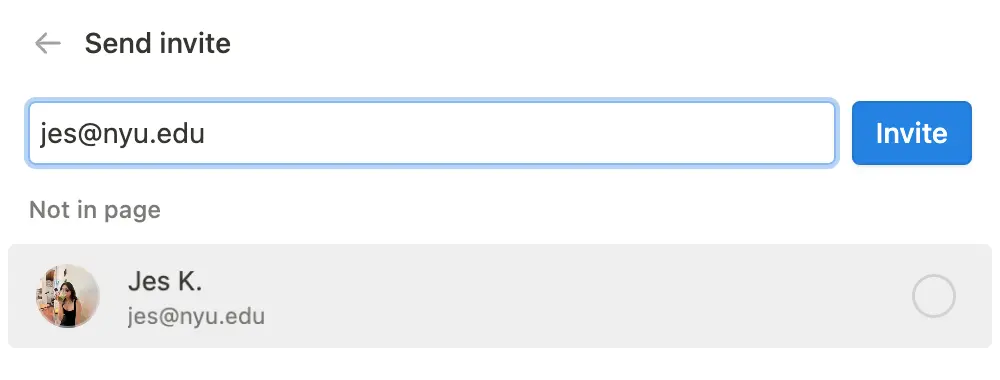
Se você desativar a descoberta de perfil, os usuários verão isto quando forem convidados para um espaço de trabalho ou uma página:
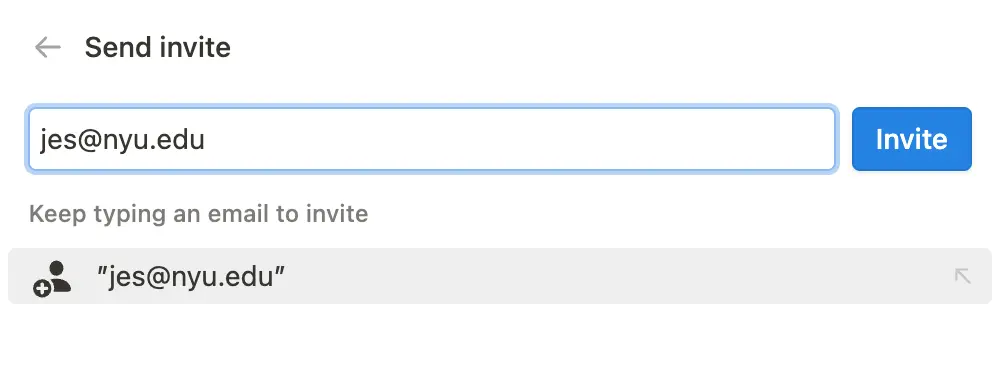
Nota: o usuário que está lhe convidando poderá ver seu perfil se você já fizer parte do mesmo espaço de trabalho ou após você ingressar no espaço de trabalho.
Perguntas frequentes
Esqueci minha senha. E agora?
Esqueci minha senha. E agora?
Se você esqueceu sua senha, siga as instruções para redefini-la aqui →
Acabei de receber um e-mail dizendo que mudei meu endereço de e-mail ou senha, mas isso não é verdade.
Acabei de receber um e-mail dizendo que mudei meu endereço de e-mail ou senha, mas isso não é verdade.
Se você receber um e-mail avisando sobre uma mudança na sua senha, é recomendável resetar a senha da sua conta o mais rápido possível. Para fazer isso, siga as orientações abaixo:
No seu navegador, acesse notion.so/login.
Clique no botão
Continuar com e-mail.Insira o endereço de e-mail que você usa para acessar sua conta do Notion.
Em seguida, clique na opção
Esqueceu a senha?e, depois, emEnviar link de redefinição.Enviaremos a você um link por e-mail. Esse link vai redirecionar você para a
guia Configuraçõesdo seu espaço de trabalho, e lá você poderá definir a nova senha.Denuncie atividades suspeitas para a nossa equipe de suporte: [email protected].
Tentei mudar meu e-mail, mas recebi a mensagem de erro "Já existe um usuário com esse e-mail".
Tentei mudar meu e-mail, mas recebi a mensagem de erro "Já existe um usuário com esse e-mail".
Se você quiser alterar o e-mail da sua conta para um que já esteja vinculado a outra conta do Notion, faça login na conta associada ao endereço de e-mail desejado e exclua a conta para liberar o endereço de e-mail. Confira o passo a passo:
Faça login na conta vinculada ao endereço de e-mail desejado e acesse
Configurações→{seu nome}→Excluir minha conta.Faça login na conta cujo endereço de e-mail você deseja alterar e acesse
Configurações→{seu nome}→Alterar e-mail.
E se eu por acaso excluir algo acidentalmente? Como posso recuperar esse conteúdo?
E se eu por acaso excluir algo acidentalmente? Como posso recuperar esse conteúdo?
Se você por acaso excluir sem querer uma página, um espaço de trabalho ou até mesmo a conta inteira, calma! Nós sabemos que acidentes podem acontecer 😅 É só clicar no ícone? que está na parte inferior da barra lateral para entrar em contato com a nossa equipe. Se preferir, também é possível escrever para [email protected].
Nós mantemos backups das nossas bases de dados, então conseguimos restaurar conteúdos de até 30 dias antes da ação de exclusão.